






1. Introduction
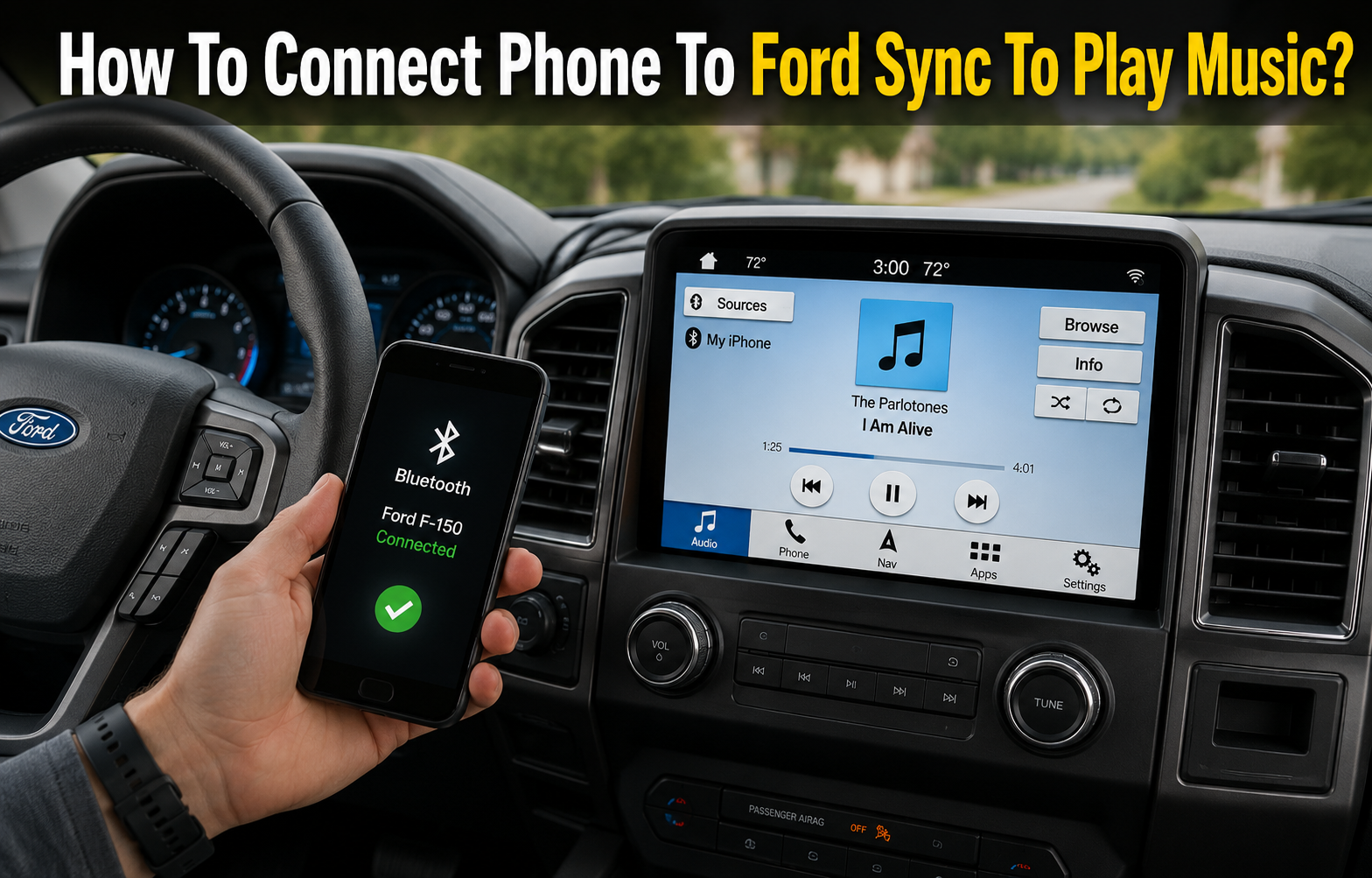
If you own a Ford vehicle, chances are you already know how convenient it is to have your favorite playlists, podcasts, and audiobooks playing through your car speakers instead of relying on the radio. Ford SYNC is the in-car entertainment and communication system built into most modern Ford vehicles, and learning how to connect phone to Ford SYNC to play music is one of the simplest ways to upgrade your daily driving experience.
Ford SYNC allows drivers to make hands-free calls, get turn-by-turn directions, and stream audio directly from their smartphones without ever needing to touch the phone while driving. Depending on the model year and trim of your vehicle, you may be using SYNC, SYNC 2, SYNC 3, or the newer SYNC 4, each of which offers slightly different menus and features, though the core process of pairing a phone remains largely similar.
There are several reasons drivers want this connection working properly. Streaming music through Bluetooth or a cable gives you access to your entire music library instead of being limited to FM or AM stations. It also keeps your hands on the wheel and your eyes on the road, since you can control playback using voice commands or steering wheel buttons rather than fumbling with your phone screen.
Before you begin, it helps to have a few things ready. You will need your smartphone with Bluetooth enabled, a charging or data cable if you plan to use a wired connection, and a few minutes of patience since first-time pairing can occasionally require a couple of attempts. With that groundwork covered, let’s walk through every available method for connecting your phone to Ford SYNC.
2. Understanding Your Connection Options
Before diving into the setup steps, it is worth understanding that there is not just one single way to connect your phone to Ford SYNC. Ford designed the system to support multiple connection types so that drivers can choose whichever method suits their phone and preferences best.
The table below gives a quick comparison of the main options available.
| Connection Method | Wired or Wireless | Best For | Sound Quality |
|---|---|---|---|
| Bluetooth | Wireless | Hands-free convenience, calls and music | Good |
| USB Cable | Wired | Stable connection, charges phone simultaneously | Very Good |
| Apple CarPlay | Both (model dependent) | iPhone users wanting a mirrored interface | Excellent |
| Android Auto | Both (model dependent) | Android users wanting a mirrored interface | Excellent |
| AUX Cable | Wired | Older SYNC systems without Bluetooth support | Basic |
Bluetooth is generally the most popular choice because it requires no cables and connects automatically once paired the first time. A USB cable connection tends to offer slightly more stable audio and has the added benefit of charging your phone while you drive. CarPlay and Android Auto go a step further by mirroring a simplified version of your phone’s interface directly onto the SYNC touchscreen, which many drivers find easier and safer to use. Older Ford models that predate Bluetooth support may still rely on a simple AUX cable, which works but does not offer the same level of integration.
Choosing between these options usually comes down to your phone type, your SYNC version, and how much control you want over the interface while driving.
3. How to Check Your SYNC Version
Since Ford SYNC has evolved over the years, it is helpful to confirm which version is installed in your vehicle before attempting to connect your phone, as the menu steps can differ slightly between versions.
To check your SYNC version, press the settings button on your touchscreen and look for an option labeled “About SYNC” or “System Information.” This screen will usually display the software version number along with the build date. Alternatively, older SYNC systems without a touchscreen may display version information by pressing the phone button on the steering wheel and navigating through the audio system menu.
Keeping your SYNC software updated is also important. Ford periodically releases updates that improve Bluetooth stability, add support for newer phone models, and sometimes introduce entirely new features like wireless CarPlay. Updates can typically be downloaded through the Ford account and applied via a USB drive or over Wi-Fi, depending on your vehicle’s capabilities. Knowing your version and keeping it current will make the rest of the setup process far smoother.
4. Connecting via Bluetooth (Step-by-Step)
Bluetooth remains the most common and convenient way to connect a phone to Ford SYNC, and once it is set up correctly, your phone should reconnect automatically every time you get in the car.
Step 1: Prepare your phone. Open the Bluetooth settings menu on your smartphone and make sure Bluetooth is switched on. Keep this screen open, as you will need to select SYNC from the list of available devices shortly.
Step 2: Access the Bluetooth menu on SYNC. On the vehicle’s touchscreen, go to Settings, then select Bluetooth Devices, followed by Add Bluetooth Device. On vehicles without a touchscreen, press the phone button on the steering wheel and say “Add Bluetooth Device” or select it from the audio menu.
Step 3: Select SYNC from your phone. Your phone should now display “SYNC” or a similar name in its list of nearby Bluetooth devices. Tap on it to begin pairing.
Step 4: Confirm the pairing code. A six-digit code will appear on both the SYNC screen and your phone. Check that the numbers match, then confirm on both devices to complete the pairing.
Step 5: Allow automatic connection. Most phones will ask whether to allow automatic reconnection in the future. Select yes so that your phone connects to SYNC automatically every time you start the car.
Step 6: Switch the audio source. Once paired, open your preferred music app on your phone and press play. On the SYNC screen, go to the Media menu and select Bluetooth Audio or Bluetooth Stereo as the active source so the sound plays through your car speakers.
If pairing does not work on the first attempt, try restarting Bluetooth on your phone, moving the phone closer to the dashboard, or removing any previously saved SYNC pairing from your phone’s Bluetooth list before trying again.
5. Connecting via USB Cable
For drivers who prefer a more stable wired connection, or whose phone has trouble maintaining a steady Bluetooth signal, connecting through USB is an excellent alternative.
Start by choosing a good quality USB cable that supports both data transfer and charging, since a charge-only cable will power your phone but will not allow SYNC to read your music files or app data. Locate the USB port in your Ford vehicle, which is typically found in the center console, glovebox, or armrest storage area depending on the model.
Plug your phone into the USB port, then go to the Media menu on the SYNC touchscreen and select USB as the active audio source. Your phone’s music library or currently playing app should now be accessible through the SYNC interface, and in many cases you can browse songs, artists, and playlists directly from the car’s screen.
If SYNC does not recognize your device, try a different USB cable, restart your phone, or check that your phone’s USB connection settings are set to allow file transfer or media access rather than charging only.
6. Using Apple CarPlay
Apple CarPlay offers iPhone users a simplified and highly visual way to access music, messages, maps, and calls directly through the SYNC touchscreen, using an interface designed specifically for driving.
To use CarPlay, your Ford vehicle must have CarPlay-compatible SYNC hardware, which is common in SYNC 3 and SYNC 4 systems, and your iPhone should be running a reasonably recent version of iOS. For a wired setup, simply connect your iPhone to the USB port using an Apple-certified cable, and CarPlay should launch automatically on the touchscreen. Some newer Ford models also support wireless CarPlay, which connects automatically once your iPhone has been paired with the vehicle’s Bluetooth at least once.
Once CarPlay is active, you can open Apple Music, Spotify, or any other supported streaming app directly from the CarPlay home screen, and control playback either by tapping the screen or using Siri voice commands.
If CarPlay does not launch, check that CarPlay is enabled in your iPhone’s settings, confirm your cable supports data transfer, and make sure your SYNC software is updated to the latest version.
7. Using Android Auto
Android Auto works in much the same way as CarPlay but is designed for Android smartphones, offering a clean, driver-friendly layout for navigation, messaging, and music.
Compatibility requires a SYNC 3 or SYNC 4 equipped Ford vehicle along with an Android phone running a supported version of the Android operating system. For a wired connection, plug your Android phone into the USB port using a compatible cable, and the Android Auto interface should appear automatically on the touchscreen. Select Ford models also support wireless Android Auto, which works after your phone has previously been paired via Bluetooth.
Within Android Auto, you can launch music apps such as Spotify, YouTube Music, or Amazon Music, and control playback through touch or Google Assistant voice commands.
If the connection fails, double-check that the Android Auto app is installed and updated on your phone, try a different cable, and ensure both Bluetooth and location services are enabled on your device.
8. Playing Music: App-Specific Instructions
Once your phone is connected to SYNC through any of the methods above, playing music is generally straightforward, though a few small differences exist between popular apps.
Spotify: Open the Spotify app on your phone, select a playlist or song, and press play. If connected via Bluetooth or USB, audio will route automatically once SYNC is set to the correct source. Within CarPlay or Android Auto, Spotify appears as an icon on the main screen for direct access.
Apple Music: Works natively within CarPlay with no extra setup required. For Bluetooth or USB connections, simply open the app and begin playback as usual.
YouTube Music: Fully supported through Android Auto and also works over standard Bluetooth streaming, though it is not available within Apple CarPlay.
Amazon Music: Compatible with Bluetooth, USB, CarPlay, and Android Auto, with playlists and voice control available depending on the connection type.
Local or offline music files: These are best played through a USB connection, since SYNC can browse and display files stored directly on your phone or a connected flash drive.
9. Adjusting Audio Settings for Better Sound
After connecting your phone, a few small adjustments can noticeably improve your listening experience. Volume and equalizer settings can typically be found within the Audio or Settings menu on the SYNC touchscreen, allowing you to balance bass, treble, and overall volume levels to your preference.
Voice commands are another helpful feature, letting you say things like “play next song” or “call contact name” without touching your phone. Most Ford vehicles also include steering wheel controls that let you skip tracks, adjust volume, and answer calls with a simple button press, keeping your focus on the road at all times.
10. Common Problems and Troubleshooting
Even with a straightforward setup process, connection issues can occasionally arise. The table below outlines some of the most common problems and their typical solutions.
| Problem | Possible Solution |
|---|---|
| Phone won’t pair | Restart Bluetooth, delete old SYNC pairing, try again |
| Music plays but no sound | Check that Bluetooth Audio is selected as the source |
| Connection drops randomly | Update SYNC software, keep phone within range |
| USB device not recognized | Try a different cable, check file transfer settings |
| SYNC acting unresponsive | Perform a soft reset of the SYNC system |
If none of these steps resolve the issue, a full system reset through the SYNC settings menu often clears out any corrupted pairing data and allows you to start the connection process fresh.
11. Tips for a Smoother Experience
A few simple habits can help keep your phone and SYNC connection running reliably over time. Regularly checking for and installing SYNC software updates ensures compatibility with the latest phone models and operating systems. If you frequently switch between multiple phones, it helps to review your list of paired devices occasionally and remove ones you no longer use.
Learning a handful of voice commands can also make daily use far more convenient, letting you change songs or answer calls without reaching for your phone. Lastly, if you plan on streaming music for long drives, connecting via USB rather than Bluetooth can help conserve your phone’s battery while keeping it charged at the same time.
12. Conclusion
Learning how to connect phone to Ford SYNC to play music opens up a much richer in-car entertainment experience, whether you prefer the simplicity of Bluetooth, the stability of a USB cable, or the fully mirrored interfaces offered by Apple CarPlay and Android Auto. Each method has its own strengths, and the right choice ultimately depends on your phone type, your SYNC version, and how much control you want over the on-screen interface while driving.
Once connected, a little time spent adjusting audio settings and learning a few voice commands can make every drive noticeably more enjoyable and far safer, since you can keep your hands on the wheel and your attention on the road while still enjoying your favorite music, podcasts, or playlists.
Related Articles
Is Ford Escape A Good Car? Complete Reliability, Performance & Buyer’s Guide
Why Don’t Ford MAF Engines Use a MAP Sensor? Complete Explanation
How Much Does a Ford F150 Weigh? Full Weight Guide by Trim, Cab & Engine
How To Change Battery In Ford Key Fob? Easy Step-by-Step Guide